
Building Light Show Creator: Part 1
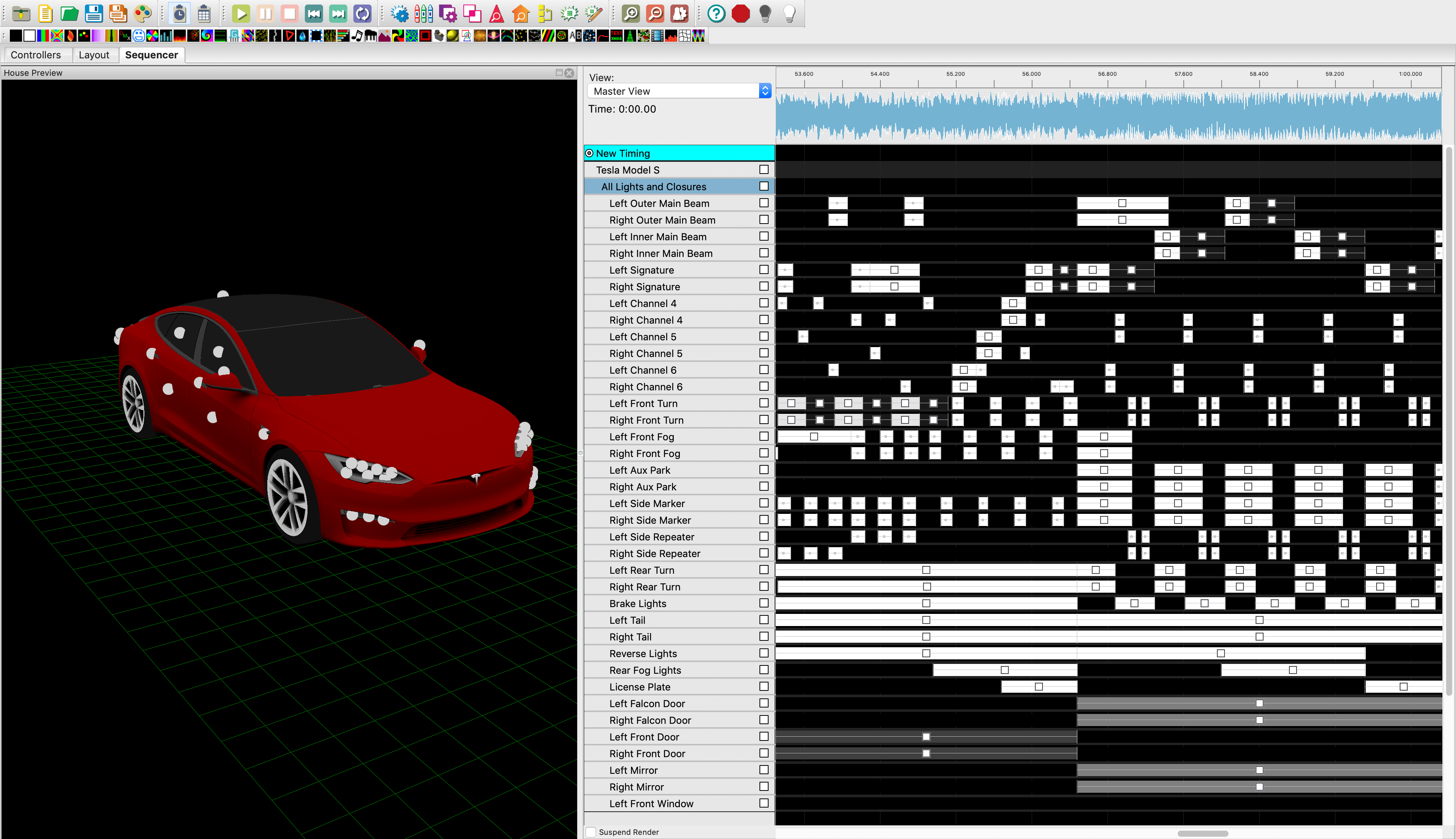
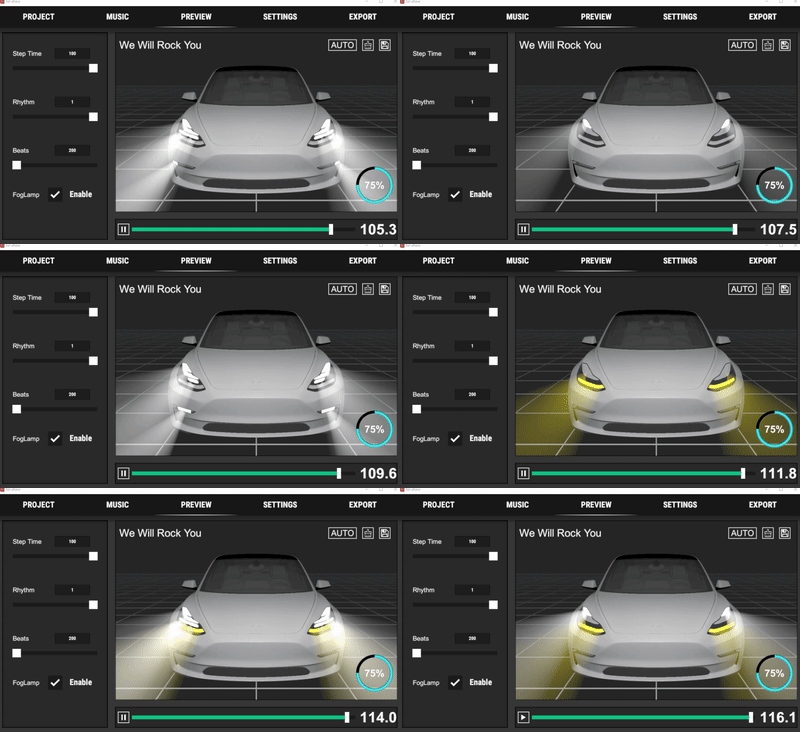
Tesla introduced Light Show across its vehicle lineup in the 2021 holiday update. Besides the built-in show, owners could create custom ones. I tried it immediately, but found editing too difficult. That gave me an idea.
Where the idea came from
Tesla recommended an open-source application called xLights, a professional tool for editing lighting performances. Import Tesla’s template and some music, and you can start creating a show.
Editing in xLights felt cumbersome: the show needed to be edited frame by frame, and the exported file then had to be checked with a script. Tesla imposes strict limits on lighting sequences, partly to protect the lights from damage. The process took time and effort. Could it be simpler—ideally, import a song and generate the show with one click? I decided to build an app.
Checking feasibility
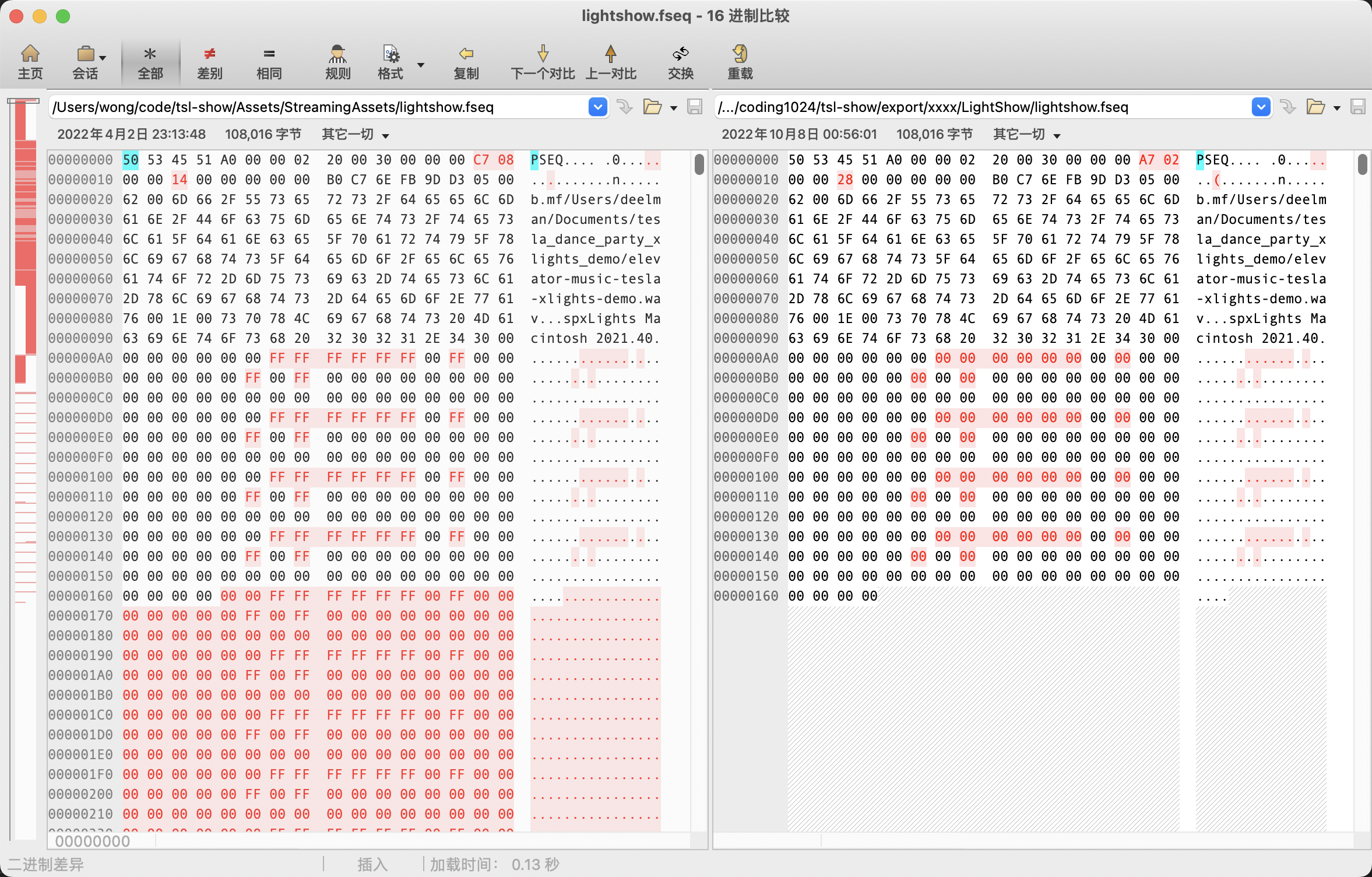
The first and most important step was to determine whether I could generate a valid FSEQ sequence file, equivalent to one produced by xLights, that the vehicle would recognize. FSEQ is binary, so I had to examine what its bytes meant.
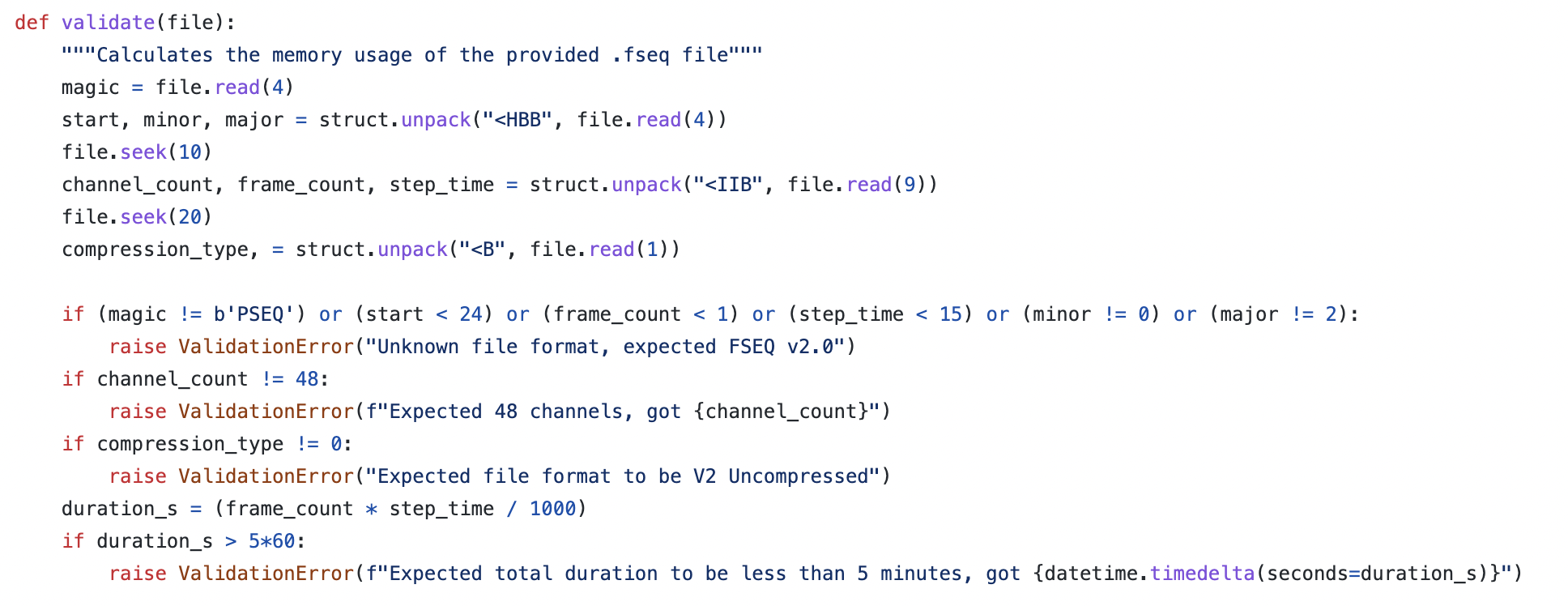
Tesla’s validation script helped me infer the basic format: a header followed by sequence frames describing each light’s on/off state or brightness.
To test the idea, I used Tesla’s official example, which contained three files:
lightshow.wav: the music file, which I could leave alone.lightshow.xsq: the xLights project, with sequence information in XML form.lightshow.fseq: the binary sequence exported by xLights for the vehicle.
I imported sequence data from the XSQ project into my app, exported a new FSEQ file, and compared it byte by byte with the xLights output. I kept going until the two files matched exactly. That showed my app could export the same sequence format as xLights.
Building the core feature
After testing the export on a real vehicle, I moved on to the core feature: automatic generation.
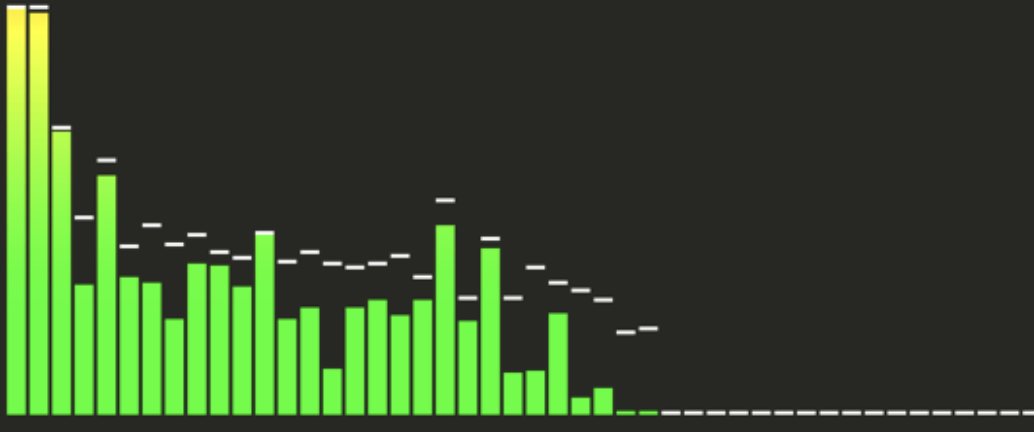
The principle is straightforward. Analyze the music, divide the frequency range into n bands, and assign them to the vehicle’s lights. Turn a light on when its band exceeds a threshold, and off otherwise. It resembles the animated spectrum display in a music player.
Supporting controls
Fast rhythms and rapidly changing frequencies can exceed the vehicle’s limits, so I added parameters users could adjust:
- Step time: the duration of each frame. Longer steps use less memory.
- Rhythm sensitivity: sensitivity to changes in the music. In principle, lower sensitivity uses less memory.
- Beat duration: the maximum duration of each light activation. Longer durations use less memory.
- Fog-light switch: the Standard Range Model 3 and Model Y configurations described here did not have front fog lights, so switching this off made the result more suitable for those vehicles.
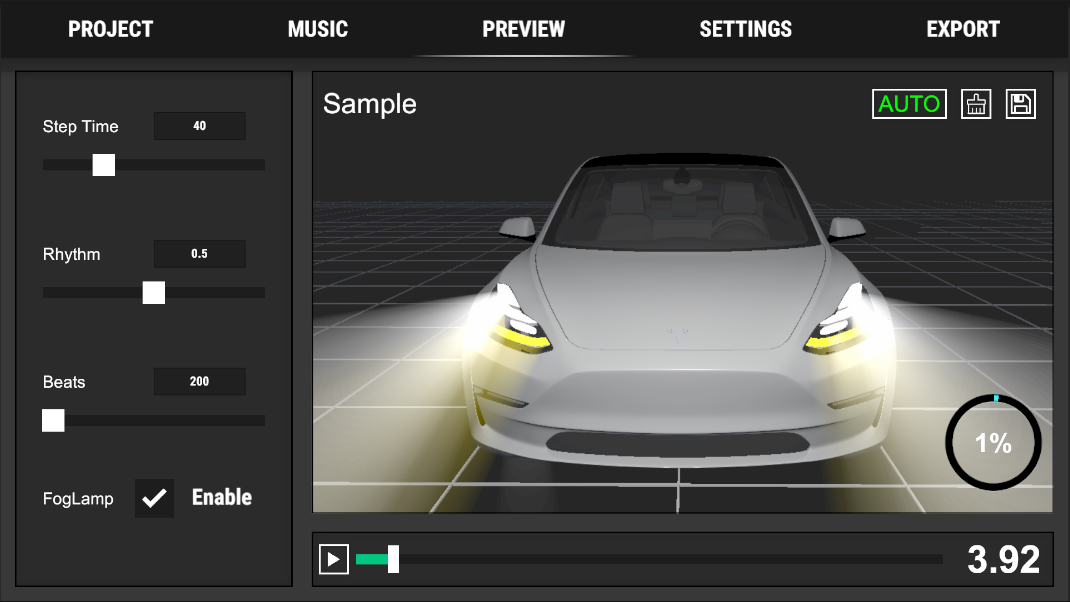
To prevent sequences from exceeding the memory limit, I ported Tesla’s Python validation logic into the app. It checks usage while recording, displays it in real time, and refuses to export a sequence that exceeds the limit.
App-store release
The app was released on the Apple App Store and Google Play:
Plans for future iterations
At the time of writing, the next items on my list were:
- A Mac version.
- Manual editing.
- Audio recording.
I also uploaded several shows recorded with the app, featuring some fun background music, to GitHub. Feel free to download and try them:
Comments
Questions, ideas and experiences are welcome. Please be kind and avoid sharing private information.
Loading comments…